A Microsoft 365 E5 license (E5, E5 Compliance, or E5 Insider Risk Management)Workstations that run Windows 11 Enterprise with Microsoft 365 applicationsDevices joined via Microsoft Entra with certain Defender antivirus versions and application versions on boardOnly organizations that meet those criteria will be able to run Microsoft Purview Insider Risk Management to get the forensic evidence they need from the cloud.
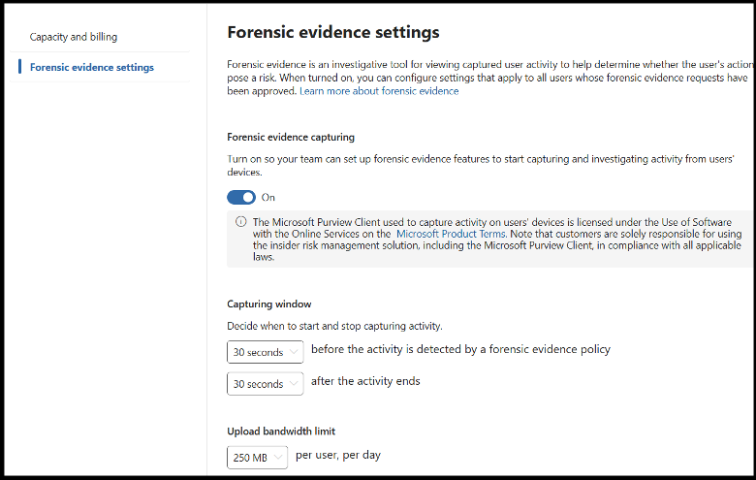
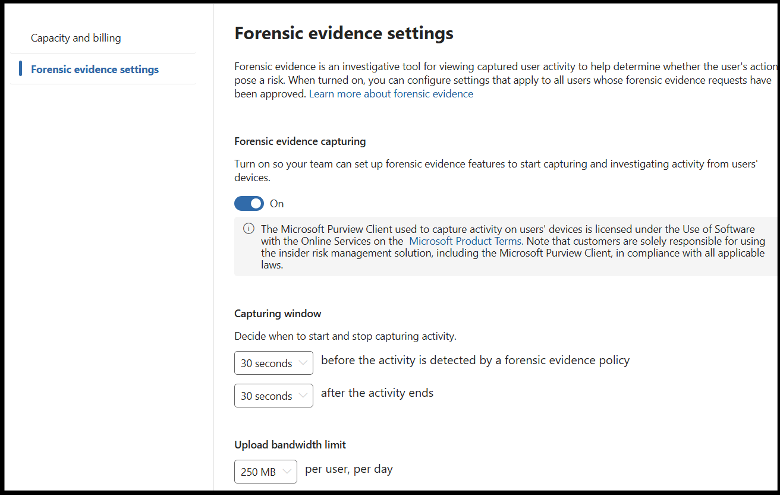
How to capture forensic evidence from Microsoft Purview: To begin logging, ensure you have the proper subscription that includes the Insider Risk Management feature. You’ll also need to configure data storage access in order to store the necessary logging, and you’ll need to review your firewall settings to ensure you don’t have egress filtering enabled that will block transmission of information to specific Microsoft domains such as compliancedrive.microsoft.com and *.events.data.microsoft.com. (Note: Ensure you review this website to keep up to date on the latest URLs used by Microsoft monitoring. As Microsoft solutions evolve, you may need to revisit these rules and adjust accordingly.)Next you need one of the following roles to configure the necessary settings: Microsoft Entra ID Compliance Administrator, Global Administrator, Purview Organization Management, Purview Compliance Administrator, or Insider Risk Management Admin.To enable Forensic Evidence Capturing, sign into the Microsoft Purview portal with an one of the above Administrator accounts, and then perform the following actions: Go to the blade for “Insider risk management”Select “Forensic evidence” in the left navigation, then “Forensic evidence settings”Turn on “Forensic evidence capturing” to enable support for forensic evidence policies.
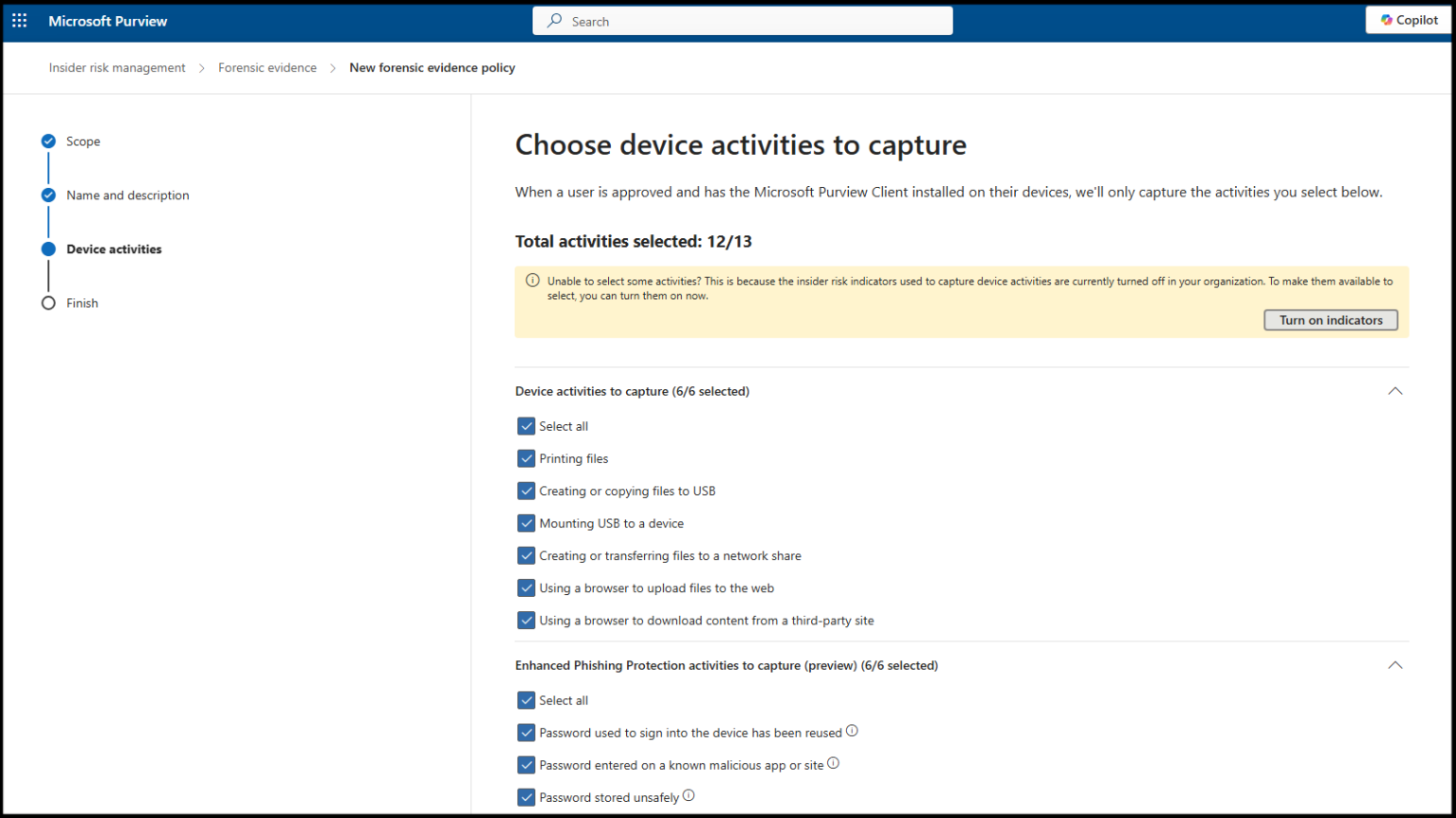
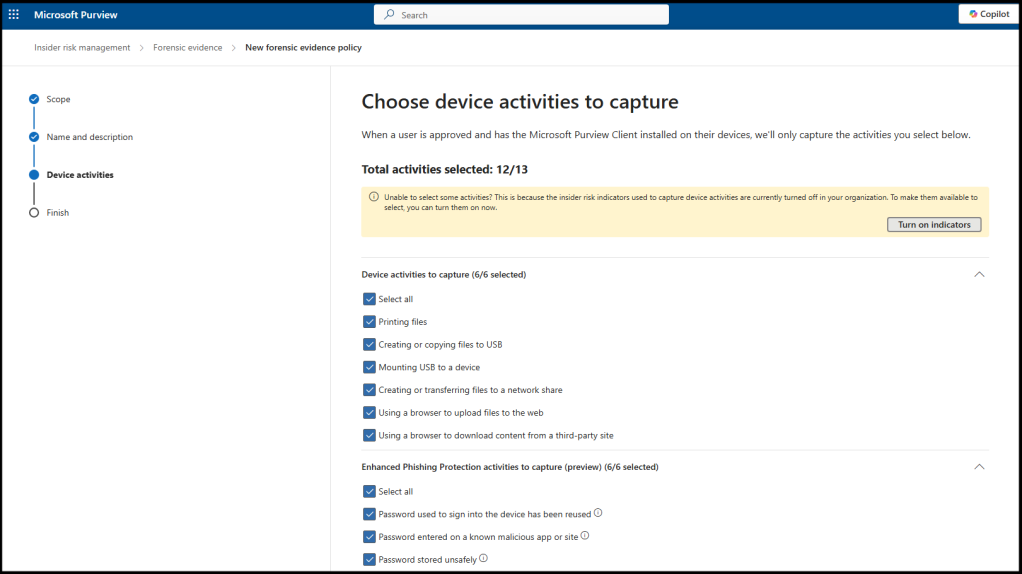
Susan Bradley / CSOYou’ll need to onboard the systems you want to monitor. You can use scripts or Intune to connect them to your logging.Next configure the forensic evidence settings you want for your organization. You’ll need to define the capturing window, logging every number of seconds or every minute as you see fit for your environment. Determine whether you need to set any upload bandwidth limits. You may need to monitor and determine the impact on your bandwidth and determine whether it impacts your network environment. Consider whether you need to set limits such as a specific bandwidth limit per user per day (for example, 100MB or 1GB). Determine whether you want to limit CPU usage to a certain percentage.Next you will need to decide whether you need to have any settings for when devices are offline. In that case, there are offline capturing cache limits you may need to set. Set the offline capturing cache limit for local storage when devices are offline.Next you need to create your forensic evidence policies. In the Purview portal, go to “Forensic evidence policies” and select “Create forensic evidence policy.” Specify which activities to capture, such as printing, file exfiltration, specific apps or websites, or all activities for selected users. “All activities” is not a typical setting and is used only for a set period during an investigation. You can also use Microsoft 365 Defender’s Advanced Hunting and Activity Log features for additional forensic analysis.
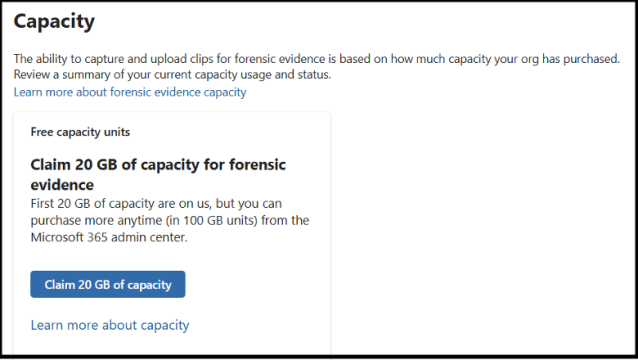
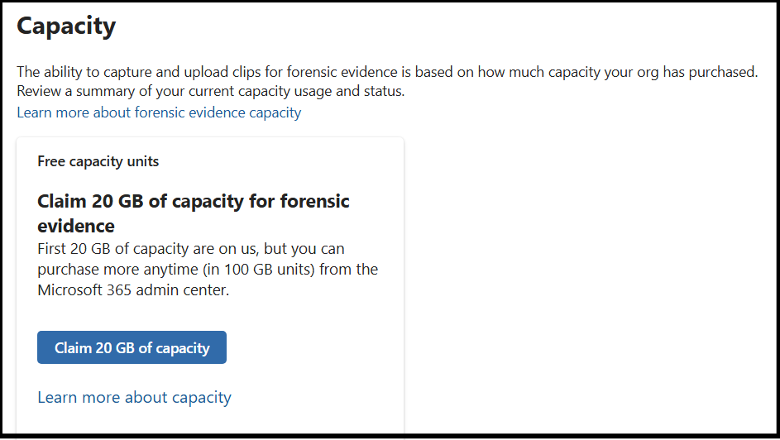
Caveats and limitations: Even with these settings, there can be times that you are at the mercy of the vendor. Forensic examinations of cloud assets can be complicated. Tracking through your log files to review what OAuth authentication was abused often takes expert review of these log files. In additional you don’t get memory dumps or full control like you do on endpoints. You often must open a support ticket with your vendor to request log files, thereby delaying your investigation and response.There are also budget limitations to be aware of. For example, you may need to purchase additional storage to store the forensic evidence you wish to capture.
Susan Bradley / CSOWith cloud-related attack vectors on the rise, it’s vital that you review your cloud options and risks. You may have all the necessary resources for your on-premises investigations, but it is very likely that you need to assign more resources for your cloud interactions.The time to know your options is now, before an intrusion occurs.


 b2b-contenthub.com/wp-content/uploads/2025/05/forensics1_4b49ba.png?resize=300%2C190&quality=50&strip=all 300w, b2b-contenthub.com/wp-content/uploads/2025/05/forensics1_4b49ba.png?resize=768%2C487&quality=50&strip=all 768w, b2b-contenthub.com/wp-content/uploads/2025/05/forensics1_4b49ba.png?resize=265%2C168&quality=50&strip=all 265w, b2b-contenthub.com/wp-content/uploads/2025/05/forensics1_4b49ba.png?resize=132%2C84&quality=50&strip=all 132w, b2b-contenthub.com/wp-content/uploads/2025/05/forensics1_4b49ba.png?resize=756%2C480&quality=50&strip=all 756w, b2b-contenthub.com/wp-content/uploads/2025/05/forensics1_4b49ba.png?resize=567%2C360&quality=50&strip=all 567w, b2b-contenthub.com/wp-content/uploads/2025/05/forensics1_4b49ba.png?resize=394%2C250&quality=50&strip=all 394w” width=”780″ height=”495″ sizes=”(max-width: 780px) 100vw, 780px” />
 b2b-contenthub.com/wp-content/uploads/2025/05/Policies_661e57.png?resize=300%2C168&quality=50&strip=all 300w, b2b-contenthub.com/wp-content/uploads/2025/05/Policies_661e57.png?resize=768%2C431&quality=50&strip=all 768w, b2b-contenthub.com/wp-content/uploads/2025/05/Policies_661e57.png?resize=1024%2C575&quality=50&strip=all 1024w, b2b-contenthub.com/wp-content/uploads/2025/05/Policies_661e57.png?resize=1536%2C862&quality=50&strip=all 1536w, b2b-contenthub.com/wp-content/uploads/2025/05/Policies_661e57.png?resize=1240%2C697&quality=50&strip=all 1240w, b2b-contenthub.com/wp-content/uploads/2025/05/Policies_661e57.png?resize=150%2C84&quality=50&strip=all 150w, b2b-contenthub.com/wp-content/uploads/2025/05/Policies_661e57.png?resize=854%2C480&quality=50&strip=all 854w, b2b-contenthub.com/wp-content/uploads/2025/05/Policies_661e57.png?resize=640%2C360&quality=50&strip=all 640w, b2b-contenthub.com/wp-content/uploads/2025/05/Policies_661e57.png?resize=444%2C250&quality=50&strip=all 444w” width=”1024″ height=”575″ sizes=”(max-width: 1024px) 100vw, 1024px” />
 b2b-contenthub.com/wp-content/uploads/2025/05/capacity3_1a5cff.png?resize=300%2C169&quality=50&strip=all 300w, b2b-contenthub.com/wp-content/uploads/2025/05/capacity3_1a5cff.png?resize=768%2C433&quality=50&strip=all 768w, b2b-contenthub.com/wp-content/uploads/2025/05/capacity3_1a5cff.png?resize=298%2C168&quality=50&strip=all 298w, b2b-contenthub.com/wp-content/uploads/2025/05/capacity3_1a5cff.png?resize=150%2C84&quality=50&strip=all 150w, b2b-contenthub.com/wp-content/uploads/2025/05/capacity3_1a5cff.png?resize=638%2C360&quality=50&strip=all 638w, b2b-contenthub.com/wp-content/uploads/2025/05/capacity3_1a5cff.png?resize=444%2C250&quality=50&strip=all 444w” width=”780″ height=”440″ sizes=”(max-width: 780px) 100vw, 780px” />