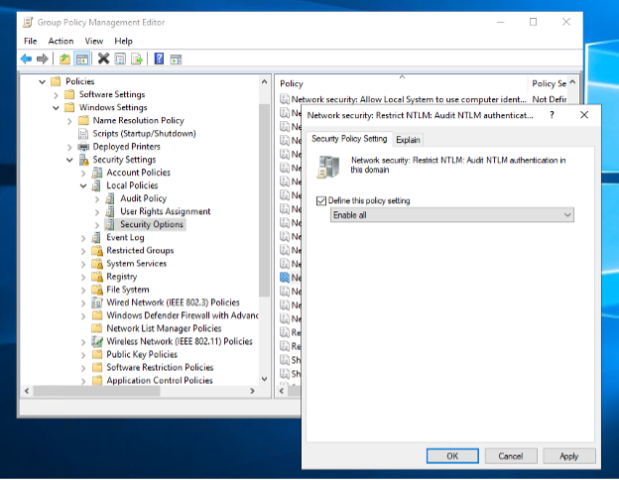
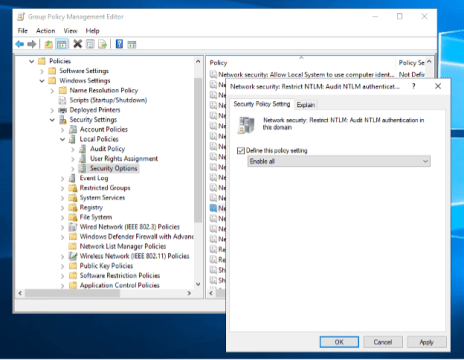
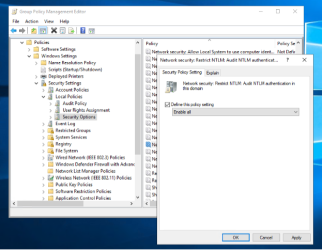
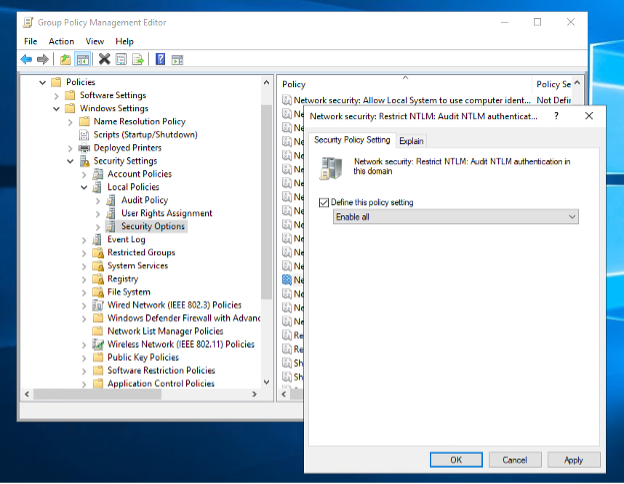
Putting Entra Private Access to work: Before you can roll out these additional security settings, you need to be well on your way toward removing NTLM from your network. First you’ll need to audit your environment to identify where NTLM is being used.To do so, navigate to Computer Configuration\Policies\Windows Settings\Security Settings\Local Policies\Security Options.
Susan Bradley / CSOThe deepest level of auditing, including workgroup and domain authentication attempts that use NTLM, can be achieved by setting: Network security: Restrict NTLM: Outgoing NTLM traffic to remote servers = Audit AllNetwork security: Restrict NTLM: Audit NTLM authentication in this domain = Enable allNetwork security: Restrict NTLM: Audit Incoming NTLM Traffic = Enable auditing for all accountsNote that the setting of “Audit NTLM authentication in this domain” should be set for domain controllers only. Auditing of “Outgoing NTLM traffic to remote servers” and “Audit Incoming NTLM Traffic” should be set on all computers.Now sit back and review your log files located in Event Viewer (Local)\Applications And Services Logs\Microsoft\Windows\NTLM\Operational.Identify the applications and processes that are communicating over a very insecure protocol. Even if you don’t deploy Entra Private Access, take the time to audit use of NTLM in your network, as it will assist you as well in defending against ransomware attacks.Once you have identified NTLM use in your applications and processes, you’ll want to block NTLM v1 and begin the transition to enforce and restrict NTLM v2 by setting the following policy: Go to Computer Configuration > Policies > Windows Settings > Security Settings > Local Policies > Security Options.Find Network Security: LAN Manager Authentication Level and set it to Send NTLMv2 response only. Refuse LM & NTLM. This enforces use of Kerberos and only allows NTLMv2 as a fallback where absolutely necessary.Once again, review the results and determine which applications and network segments are impacted. For applications that are deeply impacted, you may want to evaluate your options, as some applications may need to be retired or updated to newer versions to phase out NTLM.If you are no longer reliant on NTLM, you can safely block its use in the domain.To do so, under Group Policy, configure Network Security by selecting the policies: “Restrict NTLM: NTLM authentication in this domain.” You can choose from “Deny for domain accounts to domain servers” to “Deny All” for total blocking.For any applications in your network, review to ensure they are not hardcoded for NTLM. Specifically check for the following: Calls to the AcquireCredentialsHandle function that are passing in the hardcoded string ntlm, replace these instances with negotiateCalls to the RpcBindingSetAuthInfo function, replace RPC_C_AUTHN_DEFAULT with RPC_C_AUTHN_GSS_NEGOTIATE.Removing NTLM from your network is not impossible, but it can be challenging. Take the time and resources to review your options so you can add more cloud security techniques and embed them into your local Active Directory.


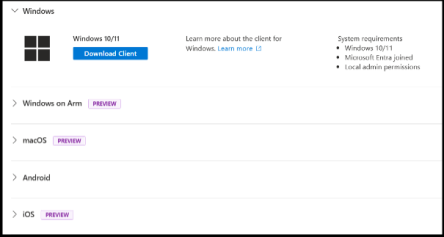
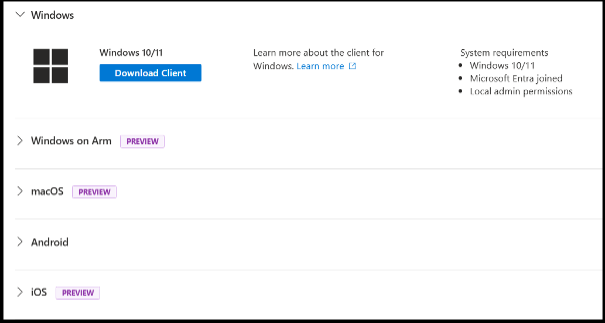 b2b-contenthub.com/wp-content/uploads/2025/08/Entra-Private-Access-Device-Availability.png?resize=300%2C160&quality=50&strip=all 300w, b2b-contenthub.com/wp-content/uploads/2025/08/Entra-Private-Access-Device-Availability.png?resize=150%2C80&quality=50&strip=all 150w, b2b-contenthub.com/wp-content/uploads/2025/08/Entra-Private-Access-Device-Availability.png?resize=444%2C237&quality=50&strip=all 444w” width=”605″ height=”323″ sizes=”auto, (max-width: 605px) 100vw, 605px” />
 b2b-contenthub.com/wp-content/uploads/2025/08/Entra-Private-Settings.png?resize=300%2C233&quality=50&strip=all 300w, b2b-contenthub.com/wp-content/uploads/2025/08/Entra-Private-Settings.png?resize=217%2C168&quality=50&strip=all 217w, b2b-contenthub.com/wp-content/uploads/2025/08/Entra-Private-Settings.png?resize=108%2C84&quality=50&strip=all 108w, b2b-contenthub.com/wp-content/uploads/2025/08/Entra-Private-Settings.png?resize=619%2C480&quality=50&strip=all 619w, b2b-contenthub.com/wp-content/uploads/2025/08/Entra-Private-Settings.png?resize=464%2C360&quality=50&strip=all 464w, b2b-contenthub.com/wp-content/uploads/2025/08/Entra-Private-Settings.png?resize=322%2C250&quality=50&strip=all 322w” width=”624″ height=”484″ sizes=”auto, (max-width: 624px) 100vw, 624px” />